
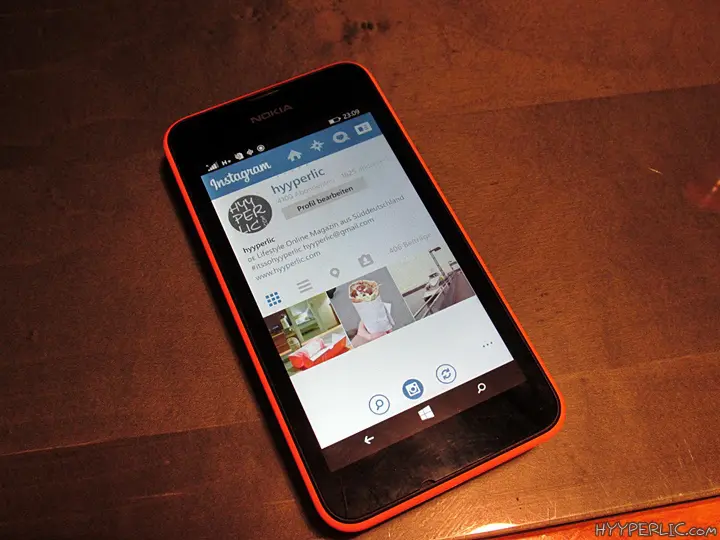
Instagram for Windows Phone? Yes, it’s (finally) possible! When I first owned one of the new Nokia phones with the Windows Phone OS back in summer 2011, the system was still new and there weren’t many apps in the store. Sadly there was no Instagram app, so I switched phones pretty fast. In late 2014 I decided to give Windows Phone another try and bought a Nokia Lumia 530 in bright orange. Of course I wanted to use Instagram on it, and there were finally Instagram apps for Windows Phone available. I found two, one official and one unofficial. Here is how both worked.
Pictastic for Instagram on Windows Phone
Pictastic is a free third-party app for Instagram. You log in to your existing Instagram account, upload pictures, browse and like other posts, follow and unfollow accounts. Because it is a third-party app, its creator wants to earn some money, so there is advertising at the bottom of the screen on every page. The notifications work as well, for example when someone likes one of your pictures or starts following you.
Instagram BETA for Windows Phone
Instagram BETA is the original Instagram app for Windows Phone. It had been a beta version for about a year already, so there were no updated functions. The look is similar to the iOS and Android versions of the app, but the Windows Phone version lacks some features. For example, you can’t edit your picture within the app: no filters, no cropping. Everything has to be done before you open the picture in Instagram BETA. Besides that, the app works smoothly and without any ads.
If you take a picture through the app, you don’t get a pre-scaled 1:1 picture. You still shoot in your pre-set 16:9 or 4:3 format and crop to the classic Instagram 1:1 afterwards, which is a bit annoying because you can’t be sure everything fits. A workaround is the “Nokia Camera” app, where you can show lines on the screen for the 1:1 Instagram format. Uploading videos is, unfortunately, not possible. I really hope for an update with new filters, video upload and the possibility to edit posts.
Which Instagram app for Windows Phone is better?
Overall I recommend the original of both Instagram apps for Windows Phone, because it works without ads. Please note that this is a snapshot from 2015: Windows Phone is no longer actively developed, so treat the post as a look back at how Instagram worked on the platform.
More Instagram tips: how to create your 2016 Best Nine collage and how to create your 2017 Best Nine collage. Browse the tags Instagram, Windows Phone and Nokia Lumia 530, or the category Lifestyle.
Is there an Instagram app for Windows Phone?
In 2015 there were two: the official Instagram BETA and the third-party app Pictastic. I tested both on a Nokia Lumia 530.
What is Pictastic for Instagram?
Pictastic is a free third-party Instagram app for Windows Phone. You log in with your Instagram account, upload and like pictures and follow accounts, but it shows ads at the bottom of the screen.
Can you edit photos in Instagram BETA for Windows Phone?
No. Instagram BETA had no filters or cropping in the app, so you had to edit pictures before opening them in it.
Can you upload videos with Instagram for Windows Phone?
No. When I tested Instagram BETA, video upload was not possible.
How do you get a 1:1 picture with Instagram on Windows Phone?
The app shoots in your pre-set 16:9 or 4:3 format and you crop to 1:1 afterwards. The “Nokia Camera” app can show guide lines for the 1:1 format while shooting.
Which Instagram app for Windows Phone do you recommend?
I recommend the original Instagram BETA because it runs smoothly and has no ads, even though it lacks editing features.








Leave a Reply